


Jun . 18, 2026 05:05 Back to list
USB 2.0 Camera Windows 10 Setup and Performance Optimization Guide
USB 2.0 Camera Windows 10: The Ultimate Setup and Optimization Guide
In today's digital era, whether for remote work, online education, or industrial inspection, having a reliable visual interface is essential. A usb 2.0 camera windows 10 configuration remains one of the most stable and widely compatible setups available. While newer standards like USB 3.0 exist, the USB 2.0 interface offers a perfect balance of energy efficiency and sufficient bandwidth for high-definition imaging in most professional applications. This guide will walk you through everything from seamless installation to performance tuning, ensuring your imaging hardware works flawlessly with the Windows 10 ecosystem.

Seamless Installation of USB 2.0 Camera on Windows 10
One of the greatest advantages of using a usb 2.0 camera windows 10 is the "Plug and Play" (PnP) capability. Windows 10 features a vast library of generic UVC (USB Video Class) drivers, meaning most cameras are recognized instantly without needing manual software installation. To ensure a stable connection, it is recommended to plug the camera directly into the motherboard's USB ports rather than using an external hub, which can sometimes cause power fluctuations or data latency. Once connected, you can simply open the "Camera" app in Windows to verify the feed.
Pro Tip: If the camera isn't detected, check the Device Manager under "Cameras" or "Imaging devices" to see if the driver requires a manual update from the manufacturer.
Technical Comparison: USB 2.0 vs. USB 3.0 for Windows 10
When selecting a usb 2.0 camera windows 10, users often wonder if they are sacrificing too much by not choosing USB 3.0. While USB 3.0 provides higher data transfer speeds, USB 2.0 is more than adequate for 1080p streaming and standard industrial imaging. The main difference lies in the uncompressed data throughput; however, most USB 2.0 cameras use MJPEG or H.264 compression to deliver high-quality video without lagging.
Optimizing the Performance of your USB 2.0 Camera Windows 10
To get the most out of your usb 2.0 camera windows 10, you should adjust the privacy settings and power management. In Windows 10, navigate to Settings > Privacy > Camera and ensure that "Allow apps to access your camera" is toggled on. Additionally, to prevent the camera from disconnecting during long periods of inactivity, go to Device Manager, right-click the USB Root Hub, and disable the option "Allow the computer to turn off this device to save power." These small tweaks can eliminate flickering and unexpected disconnects.

Industrial Applications for USB 2.0 Imaging
Beyond simple video calls, the usb 2.0 camera windows 10 setup is widely utilized in industrial machine vision. Because of the ubiquity of USB 2.0, these cameras are integrated into quality control lines, medical imaging devices, and robotic arms. The ability to stream real-time data into Windows-based analysis software makes it a cost-effective solution for SMEs who need reliable visual monitoring without the complexity of GigE or CameraLink interfaces.
Common Specifications for High-Quality USB 2.0 Cameras
When shopping for a professional usb 2.0 camera windows 10, you should pay attention to the sensor type and the frame rate. CMOS sensors are the standard for USB cameras due to their low power consumption and high integration. A typical professional-grade USB 2.0 camera will offer Full HD resolution with a frame rate of 30fps, which is sufficient for most monitoring tasks. Below are the standard specifications you should look for:
Troubleshooting Common USB Camera Issues on Windows 10
Despite the ease of use, some users encounter issues with their usb 2.0 camera windows 10. The most common problem is "Camera Not Found," which is often a result of privacy settings or a faulty cable. If the image appears grainy or dark, it is usually due to the auto-exposure settings of the Windows Camera app. Using third-party software like OBS Studio can give you more granular control over brightness, contrast, and white balance, allowing you to maximize the hardware potential of your USB 2.0 device.
Conclusion: Why USB 2.0 is Still a Reliable Choice
Choosing a usb 2.0 camera windows 10 setup is a smart decision for those prioritizing compatibility, stability, and cost-effectiveness. Whether for home use or professional industrial applications, the USB 2.0 standard provides the necessary bandwidth for high-quality imaging while ensuring seamless integration with the Windows 10 operating system. By following the optimization steps outlined in this guide, you can ensure a crystal-clear visual experience for all your digital needs.
Frequently Asked Questions (FAQs)
Does a USB 2.0 camera work with USB 3.0 ports on Windows 10?
Yes, USB standards are backward compatible. A USB 2.0 camera will work perfectly when plugged into a USB 3.0 (blue) or USB 3.1 port on a Windows 10 machine. However, the camera will still operate at USB 2.0 speeds (480 Mbps), as the hardware limit is determined by the device itself, not the port. This means you can upgrade your computer hardware without needing to replace your existing imaging equipment.
Why is my USB 2.0 camera lagging on Windows 10?
Lagging is typically caused by one of three things: insufficient power, CPU bottlenecking, or bandwidth saturation. If you are using a USB hub, try connecting the camera directly to the PC. Also, check if other high-bandwidth devices (like external hard drives) are sharing the same USB controller. Updating your chipset drivers and ensuring that your Windows 10 is fully updated can also resolve synchronization issues between the UVC driver and the hardware.
Do I need to install special drivers for a USB 2.0 camera on Windows 10?
In most cases, no. Most modern USB 2.0 cameras follow the UVC (USB Video Class) protocol, which allows Windows 10 to automatically recognize and operate the device using a generic driver. However, if your camera has specialized features—such as advanced zoom, infrared night vision, or specific industrial triggers—the manufacturer may provide a proprietary driver or software suite to unlock those advanced functionalities. You can find more detailed hardware options on the szmyccm website.
Can I use multiple USB 2.0 cameras on one Windows 10 PC?
Yes, but you must be mindful of the USB bus bandwidth. Since all USB 2.0 ports on a single controller share the same 480 Mbps bandwidth, plugging in multiple high-resolution cameras may cause frame drops or failure to start the stream. To solve this, try distributing the cameras across different USB controllers (e.g., using ports on the front and back of the PC) or utilizing a powered USB hub to ensure each camera receives consistent voltage.
-
5MP USB Camera Module Comparison: Single-Lens or Dual-Lens Design?
NewsNov.02,2026
-
MY-DC52M-A1 Dual Lens Wide Dynamic Range Usb2.0 Camera Module With HD Video 5mp+2mp FAQ
NewsOct.31,2026
-
Choosing MY-USB-2-4M898A V2: Application Fit and Specification Checks
NewsOct.22,2026
-
High Resolution Imaging with raspberry pi camera module v2 1
NewsJul.01,2026
-
Guide to Using the Raspberry Pi Camera Module v2 for AI Projects
NewsJun.29,2026
-
Best Raspberry Pi Camera Module 2 Alternative for High Speed Imaging
NewsJun.27,2026
-
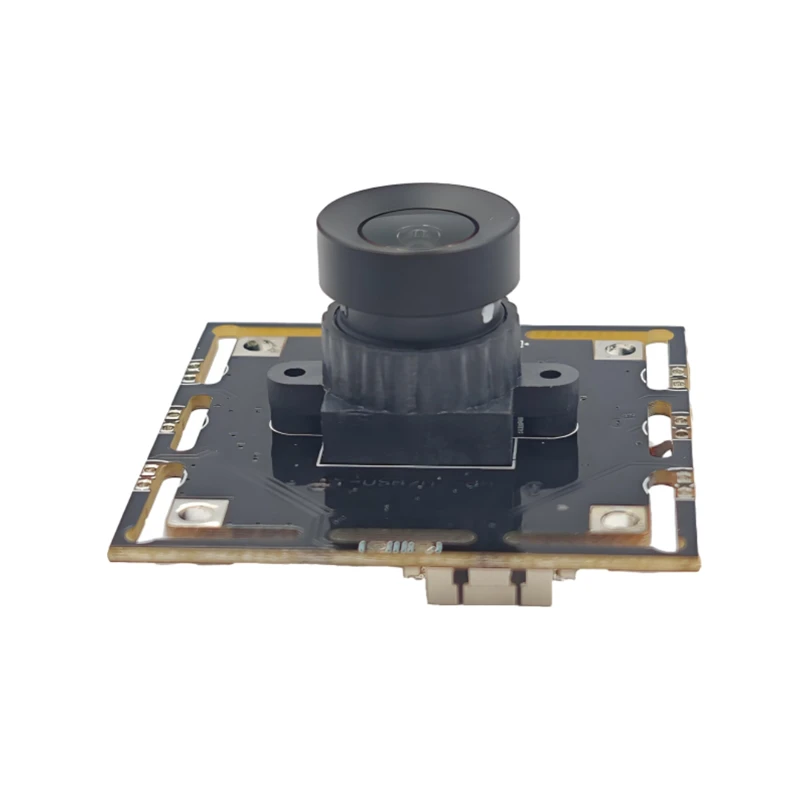
MY-USB1M818A Global Exposure Usb Camera Module With 1mp Hd Video
-
-
-
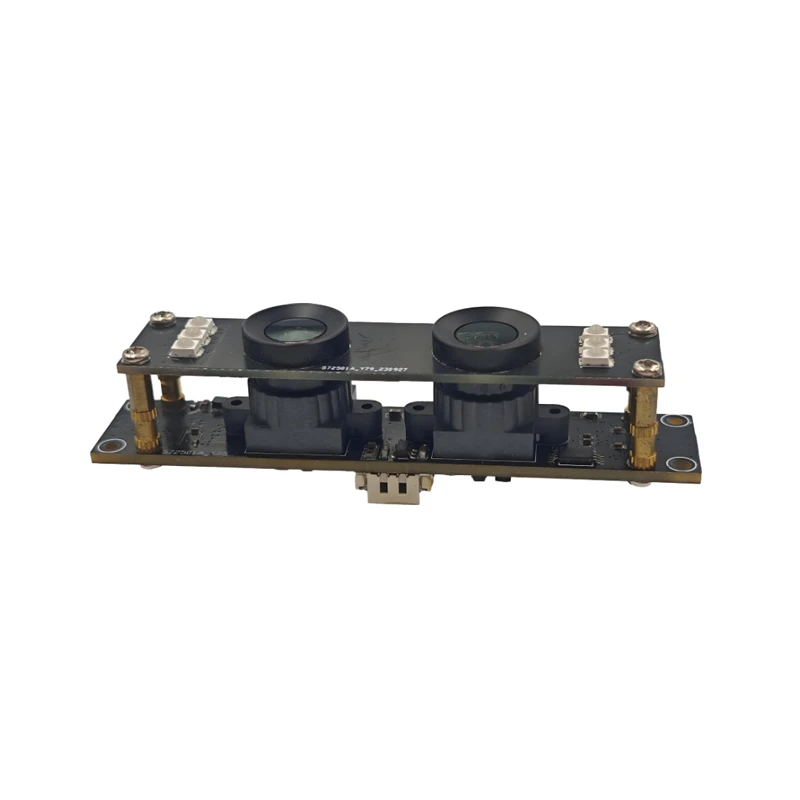
MY-DC52M-A1 Dual Lens Wide Dynamic Range Usb2.0 Camera Module With HD Video 5mp+2mp
-
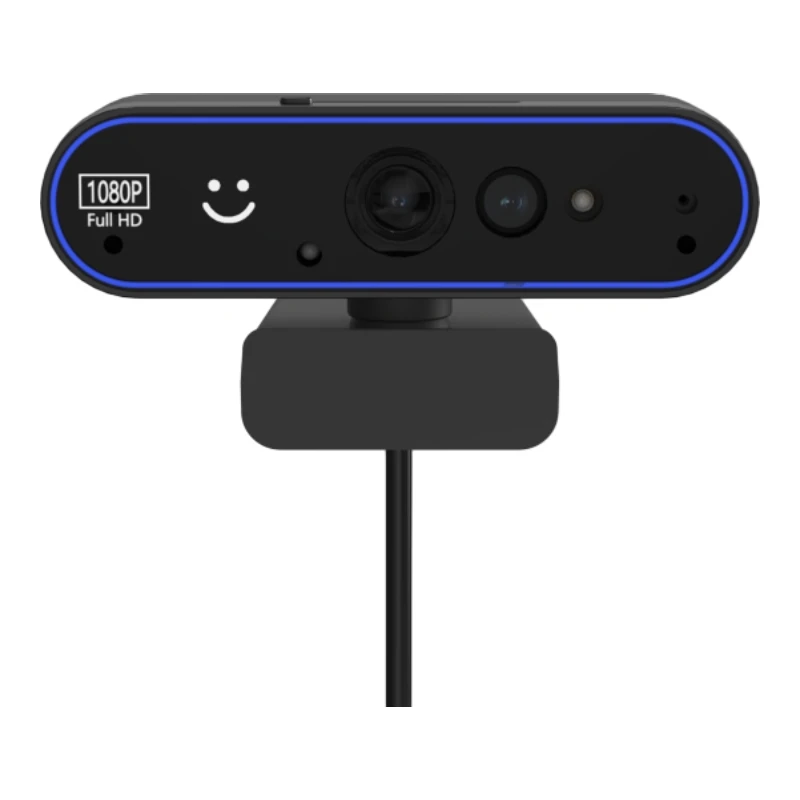
MY-WHC700 Windows Hello Face Recognition Binocular USB Camera
-
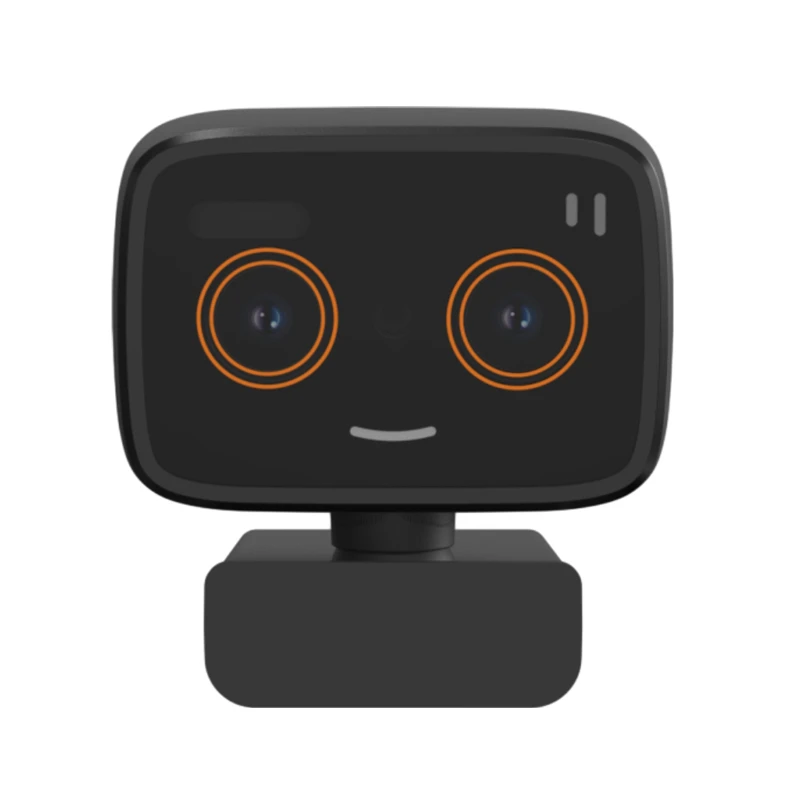
MY-DC-260-A1 Dual Lens Usb2.0 Web Camera With High-definition Video 2mp+2mp
-
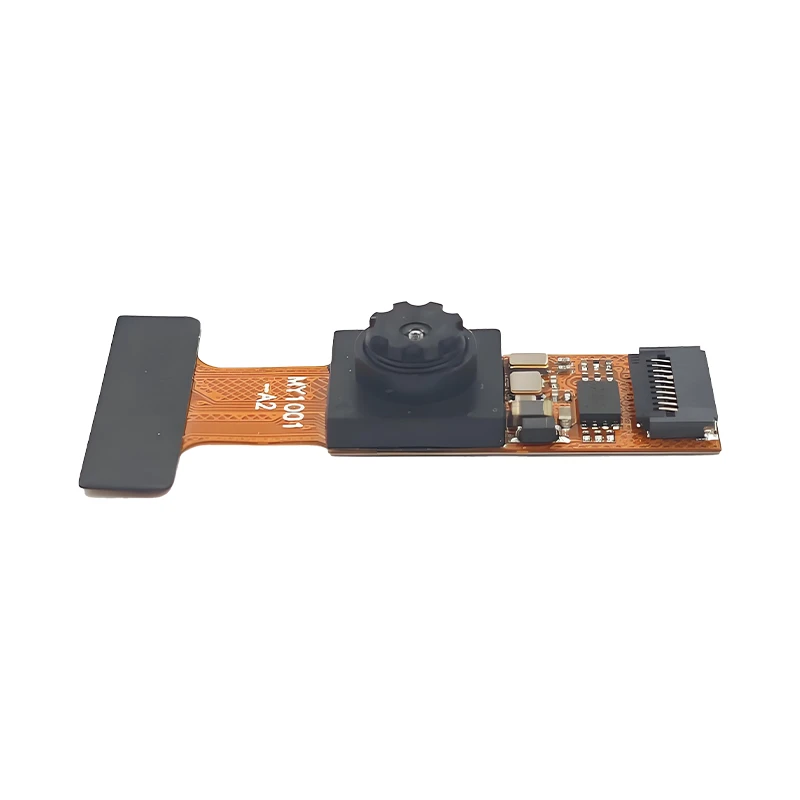
MY-1001-A2 AI Tracking, Gesture Recognition, Sitting Posture Detection Smart Camera Module
-
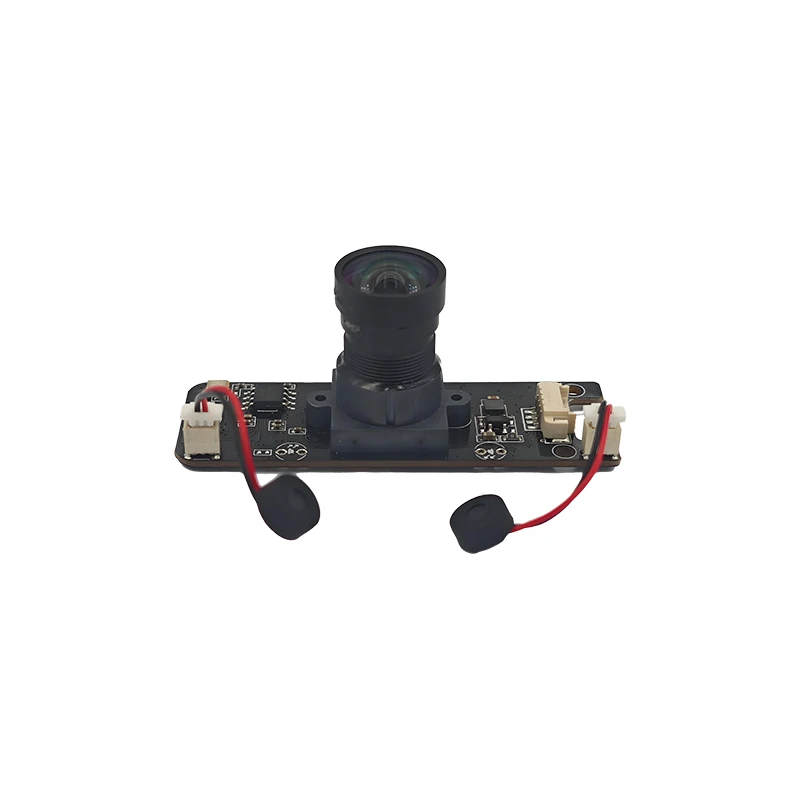
MY-USB8M158A 4K Resolution HD Video Driver-Free USB Camera Module With Microphone
